SharePoint 2010 Out-of-the-Box Web Parts

SharePoint Server 2010 out-of-the-box Web parts, organized by categories.  Not all of these Web parts are available to every site.  Also note that lists or libraries created on the site will add new options to the "Lists and Libraries" category (hence the name).

List and Libraries

  • Announcements — Use this list to track upcoming events, status updates or other team news.
  • Calendar — Use the Calendar list to keep informed of upcoming meetings, deadlines, and other important events.
  • Links — Use the Links list for links to Web pages that your team members will find interesting or useful.
  • Shared Documents — Share a document with the team by adding it to this document library.
  • Site Assets — Use this library to store files which are included on pages within this site, such as images on Wiki pages.
  • Site Pages — Use this library to create and store pages on this site.
  • Tasks — Use the Tasks list to keep track of work that you or your team needs to complete.
  • Team Discussions — Use the Team Discussion list to hold newsgroup-style discussions on topics relevant to your team.

Business Data

  • Business Data Actions — Displays a list of actions from Business Data Connectivity.
  • Business Data Connectivity Filter — Filters the contents of Web Parts using a list of values from the Business Data Connectivity.
  • Business Data Item — Displays one item from a data source in Business Data Connectivity.
  • Business Data Item Builder — Creates a Business Data item from parameters in the query string and provides it to other Web Parts.
  • Business Data List — Displays a list of items from a data source in Business Data Connectivity.
  • Business Data Related List — Displays a list of items related to one or more parent items from a data source in Business Data Connectivity.
  • Chart Web Part — Helps you to visualize your data on SharePoint sites and portals.
  • Excel Web Access — Use the Excel Web Access Web Part to interact with an Excel workbook as a Web page.
  • Indicator Details — Displays the details of a single Status Indicator. Status Indicators display an important measure for an organization and may be obtained from other data sources including SharePoint lists, Excel workbooks, and SQL Server 2005 Analysis Services KPIs.
  • Status Lists — Shows a list of Status Indicators. Status Indicators display important measures for your organization, and show how your organization is performing with respect to your goals.
  • Visio Web Access — Enables viewing and refreshing of Visio Web Drawings.

Content Rollup

  • Categories — Displays categories from the Site Directory.
  • Content Query — Displays a dynamic view of content from your site.
  • Relevant Documents — Displays documents that are relevant to the current user.
  • RSS Viewer — Displays an RSS feed.
  • Site Aggregator — Displays sites of your choice.
  • Sites In Category — Displays sites from the Site Directory within a specific category.
  • Summary Links — Allows authors to create links that can be grouped and styled.
  • Table Of Contents — Displays the navigation hierarchy of your site.
  • Web Analytics web Part — Displays the most viewed content, most frequent search queries from a site, or most frequent search queries from a search center.
  • WSRP Viewer — Displays portlets from web sites using WSRP 1.1.
  • XML Viewer — Transforms XML data using XSL and shows the results.

Document Sets

  • Document Set Contents — Displays the contents of the Document Set.
  • Document Set Properties — Displays the properties of the Document Set.

Filters

  • Choice Filter — Filters the contents of Web Parts using a list of values entered by the page author.
  • Current User Filter — Filters the contents of Web Parts by using properties of the current user.
  • Date Filter — Filter the contents of Web Parts by allowing users to enter or pick a date.
  • Filter Actions — Use the Filter Actions Web Part when you have two or more filter Web Parts on one     Web Part Page, and you want to synchronize the display of the filter results.
  • Page Field Filter — Filters the contents of Web Parts using information about the current page.
  • Query String (URL) Filter — Filters the contents of Web Parts using values passed via the query string.
  • SharePoint List Filter — Filters the contents of Web Parts by using a list of values.
  • SQL Server Analysis Services Filter — Filters the contents of Web Parts using a list of values from SQL Server Analysis Services cubes.
  • Text Filter — Filters the contents of Web Parts by allowing users to enter a text value.

Forms

  • HTML Form Web Part — Connects simple form controls to other Web Parts.
  • InfoPath Form Web Part — Use this Web Part to display an InfoPath browser-enabled form.

Media and Content

  • Content Editor — Allows authors to enter rich text content.
  • Image Viewer — Displays a specified image.
  • Media Web Part — Use to embed media clips (video and audio) in a web page.
  • Page Viewer — Displays another Web page on this Web page. The other Web page is presented in an IFrame.
  • Picture Library Slideshow Web Part — Use to display a slideshow of images and photos from a picture library.
  • Silverlight Web part — A web part to display a Silverlight application.

Outlook Web App

  • My Calendar — Displays your calendar using Outlook Web Access for Microsoft Exchange Server 2003 or later.
  • My Contacts — Displays your contacts using Outlook Web Access for Microsoft Exchange Server 2003 or later.
  • My Inbox — Displays your inbox using Outlook Web Access for Microsoft Exchange Server 2003 or later.
  • My Mail Folder — Displays your mail folder using Outlook Web Access for Microsoft Exchange Server 2000.
  • My Tasks — Displays your tasks using Outlook Web Access for Microsoft Exchange Server 2003 or later.

PerformancePoint

  • PerformancePoint Filter — This web part displays PerformancePoint filters. Filters may be linked to other web parts to provide an interactive dashboard experience. Filter types include lists and trees based on a variety of data sources.
  • PerformancePoint Report — This web part displays PerformancePoint reports. Reports may be linked to other web parts to create an interactive dashboard experience. Report types include: Analytic charts & grids, Strategy Maps, Excel Services, Reporting Services, Predictive Trend charts, and web pages.
  • PerformancePoint Scorecard — This web part displays a PerformancePoint scorecard. Scorecards may be linked to other web parts, such as filters and reports, to create an interactive dashboard experience.
  • PerformancePoint Stack Selector — This web part displays a PerformancePoint Stack Selector. All PerformancePoint web parts, such as filters and reports, contained in the same zone will be automatically stacked and selectable using this web part.

Search

  • Advanced Search Box — Displays parameterized search options based on properties and combinations of words.
  • Dual Chinese Search — Used to search Dual Chinese document and items at the same time.
  • Federated Results — Displays search results from a configured location.
  • People Refinement Panel — This webpart helps the users to refine people search results.
  • People Search Box — Presents a search box that allows users to search for people.
  • People Search Core Results — Displays the people search results and the properties associated with them.
  • Refinement Panel — This webpart helps the users to refine search results.
  • Related Queries — This webpart displays related queries to a user query.
  • Search Action Link — Displays the search action links on the search results page.
  • Search Best Bet — Displays high-confidence results on a search results page.
  • Search Box — Displays a search box that allows users to search for information.
  • Search Core Results — Displays the search results and the properties associated with them.
  • Search Paging — Display links for navigating pages containing search results.
  • Search Statistics — Displays the search statistics such as the number of results shown on the current page, total number of results and time taken to perform the search.
  • Search Summary — Displays suggestions for current search query.
  • Search Visual Best Bet — Displays Visual Best Bet.
  • Top Federated Results — Displays the Top Federated result from the configured location.

Social Collaboration

  • Contact Details — Displays details about a contact for this page or site.
  • Note Board — Enable users to leave short, publicly-viewable notes about this page.
  • Organization Browser — This Web Part displays each person in the reporting chain in an interactive view optimized for browsing organization charts.
  • Site Users — Use the Site Users Web Part to see a list of the site users and their online status.
  • Tag Cloud — Displays the most popular subjects being tagged inside your organization.
  • User Tasks — Displays tasks that are assigned to the current user.
  • What’s New — This Web part shows new information from specified lists and libraries.
  • Whereabouts — Use to display Whereabouts information.

DataView WebPart In SharePoint 2010

A Data View Web part is a great way to display data with filtering, grouping, and user desired formatting.  It was the most useful webpart in SharePoint 2007 and now has been improved to a great extend in SharePoint 2010.  In SharePoint 2010 you now have a  XSLT Listview webpart and a Dataview webpart (Old one).
XSLT Listview webpart  – XSLT Listview webpart is a ListView whose XSLT can be modified in SharePoint designer.  With this you now have some advanced formatting options and can also use all the filters,sorting grouping etc features that a Dataview wbepart had in SharePoint 2007.
DataView Webpart – Even after all the great features that XSLT Listview webpart has offered, i would still prefer to work with the old Dataview webpart’s XSLT if i have to. The OLD dataview webpart is still available and can be used in the same manner as we used in SharePoint 2007. To add a Dataview webpart onto a page follow the steps below.
1. Open your SharePoint Page and in Site Actions select ->Edit in SharePoint Designer.
2. Now select a zone on teh Page where you want to add your Dataview weboart.
3. Next, click on Insert tab -> click on Data View.
4.  In the drop-down of Data view menu click on “Empty Data view” . This will now insert an Empty Data view in your selected zone.
5. Next click on “click here to select datasource” to select the datasource or list.
6. Select the list\library you want to display the data from.
7. Next drag and drop the columns in the dataview webpart from the right hand column list (for the list\library you selected).
You now have the Dataview webpart on your page. You can now use the formatting options available on your ribbon or can modify the XSLT either in Designer or on the page itself by editing the webpart properties in the Browser.

Different Types of WCF Hosting Environments

Self-Hosted:
By implementing your own self-hosted service application, you can:

  • Add code to start and stop your WCF service when required.
  • Expose your WCF service over protocols other than Hypertext Transfer Protocol (HTTP).
  • Add additional code to get state information about the service host.

Windows Services:
This hosting option works by registering the application as a managed Windows service. Because the operating system controls the lifetime of the service, you can activate and start your WCF service as soon as the system starts. After it has started, the service runs silently in the background. Like the self-hosting option, this type of hosting environment requires that some hosting code is written as part of the application
IIS:
The IIS hosting option enables:

  • Message-based activation, which creates a new instance of the service when a message arrives, rather than having a service running constantly.
  • Process recycling, which restarts the hosting process to clear the effects of memory leaks.
  • Idle shutdown, which stops and serializes the service after a given time to conserve system resources.
  • Process health monitoring, which enables you to respond to resource issues in the services.

WAS:
IIS 7.0 includes WAS. Hosting your WCF service in WAS offers all of the benefits of hosting in IIS, including:

  • Message-based activation
  • Process recycling
  • Idle shutdown
  • Process health monitoring

Additionally, WAS is a generalization of IIS that is not bound to HTTP.
For more information about the possible hosting options, see Hosting and Consuming WCF Services

Create a Sequential Workflow Using SharePoint Designer

Description:
       Here I created Leave application, where if required leaves is less than or equal to 1 means its "Automatically Approve", else its needs "Manager Approval".

In SharePoint 2010, first we need to create a custom list in my server(http://demo:500)
Here Select More Options, then


Here first select the Custom List, name it as "Leave Application" and click the create button,
Here, it will create a Custom List and default Title column and rename the title column to S.No.


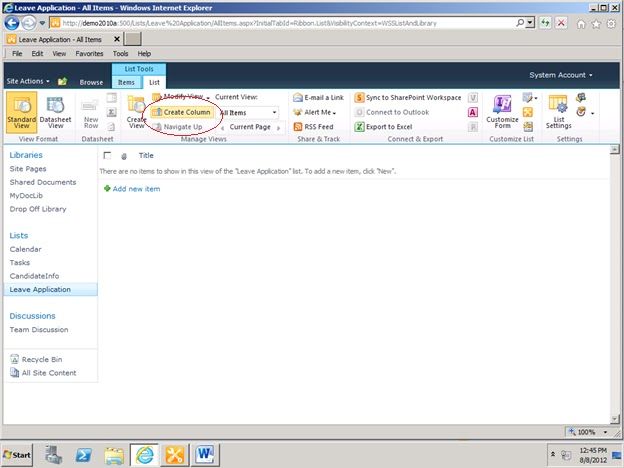
Here, to click the Create Column for creating site columns.


Here, create site columns Employee Name as Single line of text, Department as Choice are HR, ESD, Finance, StartDate as a Date filed, EndDate as a Date field and Required Leaves as number field.


Here, Our Leave Application List is look like as below


Now Here, List creation is completed now Open the SharePoint Designer


Here, select the workflows in that select the List Workflow and named it as Leave Application Status, give description also and click to ok button.


Here, Select the Condition in that select "If any value equals value" condition.


Step 1: Here, Take one If condition and set the parameters as Current Item:Required Leaves, operator is not equals to 1
Step 2: Here, In Action ribbon select "Start Approval process" and set the Approved.


Step 3: Here, select the Wait for field in change in current Item and set the status as Pending.
Step 4: Here, take one more if condition and set the parameters as Current Item : Approval Status equals to select the Approver or Participants, enter title as a mandatory filed, add the participant and click to ok.


Step 5: Here, If the Required Leaves are below 1 means automatically approved, that purpose in else block take the Set content approval status for this Document set to "Approved" with "Automatically Approved".


Here, finally workflow look like as below


Now finally save and  publish. Now go to the SharePoint server Leave Application List add new item to the list.


Now enter the appropriate values and click to save button.


Now Select the workflows


Now Start the Leave Application Status


Now click the Start button to start the workflow.


Here, workflow is started that why the workflow status it shows In Progress.


Here, Login to the Adam Barr, In that Task List it contain the details of the workflow.


Here, to enter the comments and click the Approve button.


Here, we can see the output of the workflow.


Here, the required leaves are below 1 means automatically Leave Application Status it shows "Completed".


Difference Between SharePoint Application Pages Vs Site Pages

Application Pages:
  • Application pages are stored in the server’s file system. 
  • SharePoint Designer tool cannot be used with application pages. 
  • Application pages cannot be used within sandboxed solutions. 
  • An Application page cannot be customized and modified by end user, instead a developer is required. 
  • These are the normal .aspx pages deployed within SharePoint. Most common of them are the admin pages found in _layouts folder.
  • These are deployed either at the farm level or at application level. If they are deployed within _layouts folder or global SharePoint Virtual Directory, then they can be used by any SharePoint application (available at farm level), otherwise they can be deployed at application level only by creating a virtual directory.
  • These are typical ASP.Net aspx pages and can utilize all of the functionalities available within ASP.Net including code-behind, code-beside, inline coding etc.
  • These are compiled by .Net runtime like normal pages.
  • If you deploy your custom ASPX pages within _layouts folder or within SharePoint application using a virtual directory, you will not be able to use SharePoint master pages and have to deploy your master page within the virtual directory or _layouts folder.
  • Application Pages cannot use contents as this concept is associated with SharePoint Page Layouts not with ASP.Net.
  • Since application pages are compiled once, they are much faster
  • Normally application pages are not web part pages, hence can only contain server controls or user controls and cannot be personalized by users.
  • Easiest way to deploy your existing ASP.Net web site within SharePoint is to deploy its pages as Application Pages within SharePoint. In this way you can convert any ASP.Net web solution as SharePoint application with minimal efforts.
  • SharePoint specific features like Information Management Policies, Workflows, auditing, security roles can only be defined against site pages not against application pages.
  • Application pages can be globalized using Resource files only. 
Site Pages:
  • Site Pages is a concept where complete or partial page is stored within content database and then actual page is parsed at runtime and delivered to end-users.
  • Site pages can be edited by using SharePoint Designer tool.
  • Site pages are used within Sandboxed solutions. 
  • A site page can be customized and modified by end user. 
  • Pages stored in Pages libraries or document libraries or at root level within SharePoint (Wiki pages) are Site Pages
  • You must be thinking why we should use such pages? There are many reasons for this. One of the biggest catch of the SharePoint is the page layouts, where you can modify page once for a specific content type and then you can create multiple pages using the same page layout with different contents. In this case, contents are stored within database for better manageability of data with all the advantages of a data driven system like searching, indexing, compression, etc and page layouts are stored on file system and final page is created by merging both of them and then the outcome is pared by SharePoint not compiled.
  • Site Pages can contain web parts as well as contents placeholders, and all of them are stored per page-instance level within database and then retrieved at run time, parsed and rendered.
  • Another advantage is they are at user-level not at web-application or farm level and can be customized per site level.
  • Since their definition is retrieved from database, they can utilize master pages stored within SharePoint masterpages library and merged with them at run time for rendering.
  • They are slower as compared to Application pages as they are parsed everytime they are accessed.
  • SharePoint specific features like Information Management Policies, Workflows, auditing, security roles can only be defined against site pages not against application pages.
  • Since they are rendered not compiled hence it is not easy to add any inline code, code behind or code beside. Best way of adding code to these pages is through web-parts, server controls in master pages, user controls stored in "Control Templates" folder or through smart parts. If you want to add any inline code to master page, first you need to add following configuration within web.config:<PageParserPaths>
            <PageParserPath VirtualPath="/_catalogs/masterpage/*" CompilationMode="Always" AllowServerSideScript="true" IncludeSubFolders="true" />
    </PageParserPaths>
  • To add code behind to SharePoint master pages or page layouts.
  • Since Site pages are content pages, hence all SharePoint specific features like Information Management Policies, Workflows, auditing, security roles can only be defined against site pages.
  • Variations can only be applied against Site pages for creating multilingual sites.
  • "SPVirtualPathProvider" is the virtual path provider responsible for handling all site pages requests. 

Differences between .NET vs. SharePoint?

Feature  
.NET
SharePoint
Creation:
Code need to be written even to achieve simple functionality
Lots of pre-defined web parts and elements available no need to write the code.
Time:
Takes time to create the code and test
Very less time required
Skilled Professionals:
Skilled professionals are required to create the functionality
Even novice professionals can do so easily
License Requirement:
Not required at the time of deployment of solution
Free versions available, but in case of extensive requirements License is required